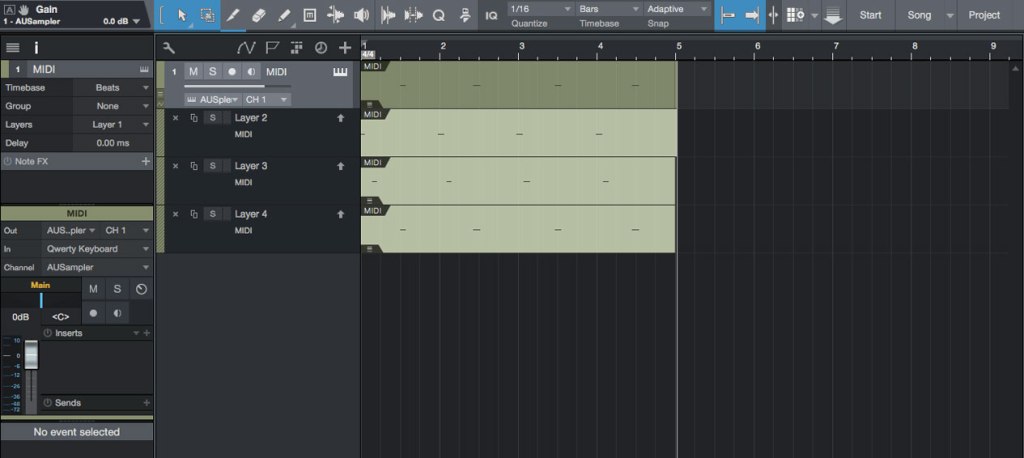
An explanation of the various Presonus Studio One’s Record Mode options, particularly relevant for those working with the Takes to Layers feature when recording Audio and MIDI simultaneously.
If you have seen my Studio One – Takes to Layers – MIDI article, you will know that I had been struggling a little to understand how Studio One handles MIDI when recording Audio and MIDI via USB from my Roland TD-25 drum module. Thanks to some extensive testing with real examples, I was able to work out was going on and understand, at last, exactly how those Record Mode options affect the MIDI and Audio results obtained. This article is me sharing with you the results of those tests, which should help those who obtain unexpected results and are not quite sure how to get the results they want.
The Context
Here’s my scenario: I want to record Audio and MIDI simultaneously from my Roland TD-25 module, and use Studio One’s Takes to Layers feature to be able to easily work with multiple takes of, for example, playing along to a song.
The Problem
Without the correct Record Mode options selected, the new MIDI event created with each recording take contained all the MIDI data from earlier takes. Not what I wanted at all, and a complete mess!
How I did the tests
In Studio One’s Arrange window, I set up one Audio track (stereo) and one Instrument track. As I was thousands of miles (yes, really) from my TD-25, with only my Macbook to hand, I used the Macbook’s built-in microphone to record my voice, and Studio One’s built-in QWERTY MIDI keyboard to simultaneously generate some MIDI notes while recording my voice.
Studio One’s built-in QWERTY MIDI input feature is really handy for those times when you need to create some MIDI but don’t have a MIDI keyboard or other input device to hand to plug into your computer. Check out my Studio One QWERTY MIDI Keyboard article to find out how to set it up and use it.
I then set up Takes to Layers in the Record Panel, activated the metronome with 1 measure of Pre Count, 4/4 time signature and 120 bpm, and recorded 3 takes, each 4 measures long:
- Take 1 = Audio and MIDI source played only on beat 1 of each measure
- Take 2 = Audio and MIDI source played only on beat 2 of each measure
- Take 3 = Audio and MIDI source played only on beat 3 of each measure
I created various versions of the above, each with a different combination of Record Mode options selected, and grabbed a full screenshot of the Studio One window showing the resulting Audio and MIDI events, and the Record Mode options selected for that particular test.
The Results
(I have only posted relevant tests, hence the Test numbering might seem a bit strange. Don’t worry about this, I only mention the Test numbers to make it clearer which screenshot is which.)
Test 6 – Record Mode options:
- Replace – Deactivated
- Takes to Layers – Activated
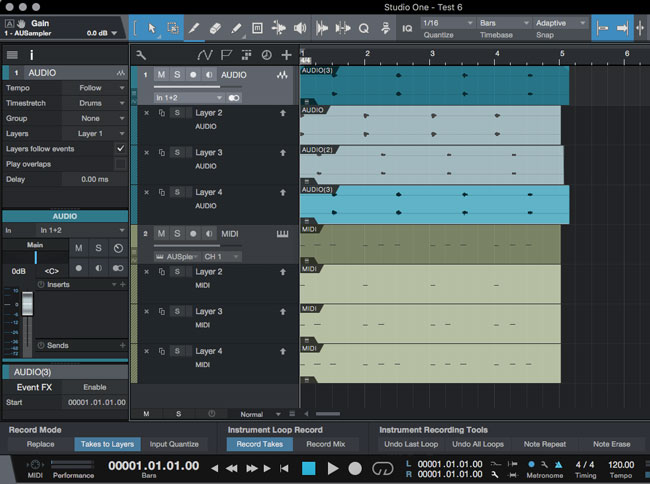
As can be seen above, the Audio takes look exactly as expected, ie first take (Layer 2) has recorded my voice on beat 1 of each measure, the second take (Layer 3) has my voice on beat 2 of each measure, and the third take has my voice on beat 3 of each measure, the MIDI takes are not the same. Instead, the first take (Layer 2) is as expected, ie one note on beat 1 of each measure, but the second and third takes (Layer 3 and 4) have simply added the new notes to what is already there from the previous takes. Not at all what I want.
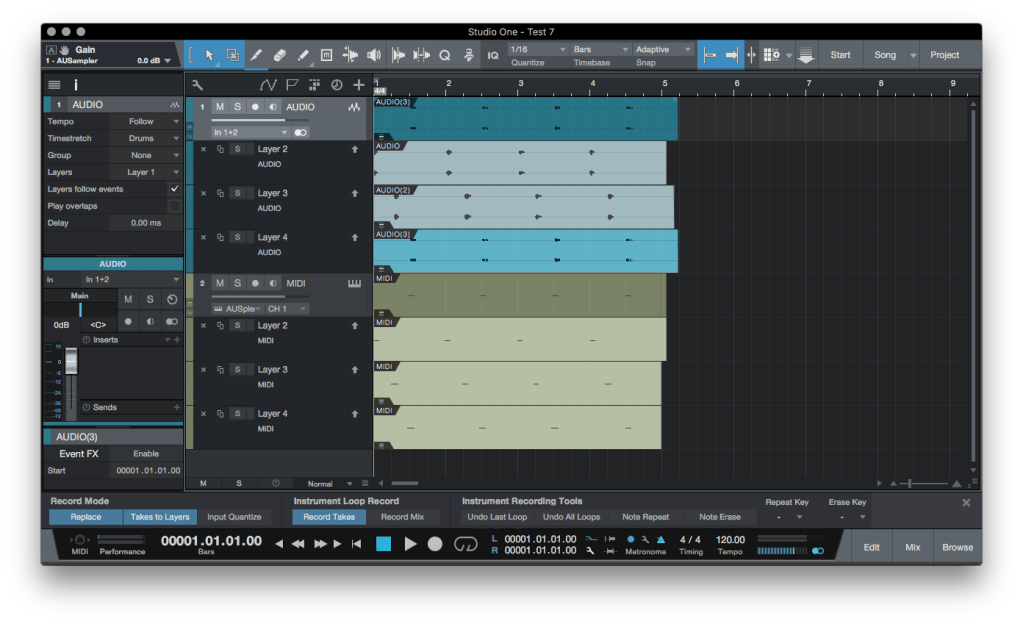
Test 7 – Record Mode options:
- Replace – Activated
- Takes to Layers – Activated
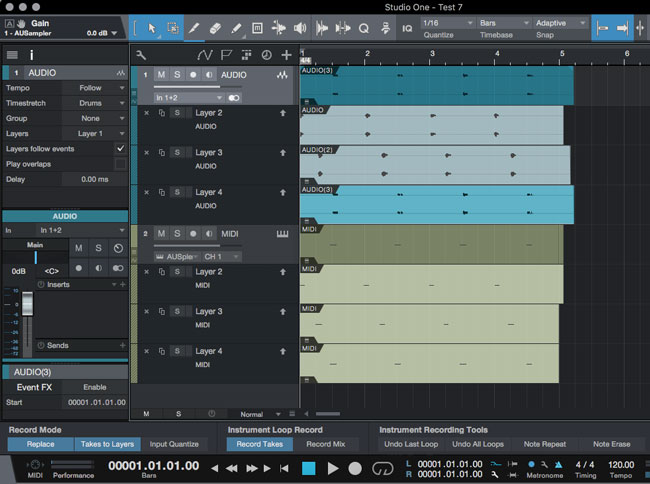
Hooray! Working as expected. The MIDI takes now exactly mimic the Audio takes, with each take only containing the notes actually played during that take.
The most important point to understand is that the Record Mode options affect BOTH Audio and MIDI, therefore we must activate Record Mode option “Replace” to stop the new MIDI take accumulating all the MIDI data recorded in earlier takes.
What about Instrument Loop Record?
The Instrument Loop Record options ONLY affect takes recorded while looping through a section of the song, ie when setting Loop L and R points and activating the Loop. In my context of recording a play along to a complete song, I’m not using Loop Record, therefore these settings have no effect. Here are a couple of screenshots to demonstrate this.
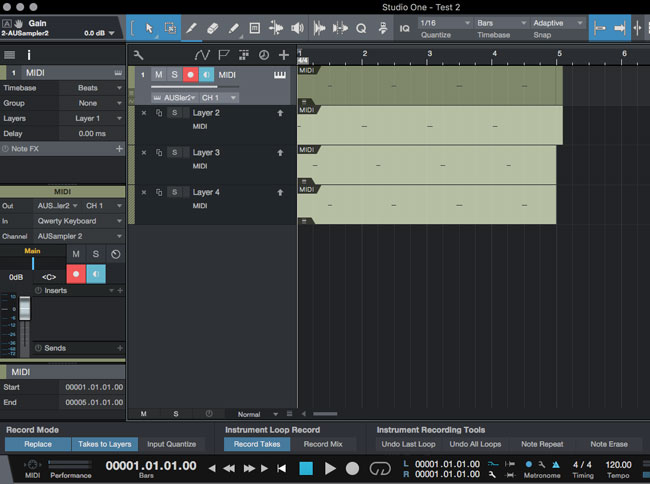
Test 2: Instrument Loop Record – Record Takes activated
Test 8: Instrument Loop Record – Record Mix activated
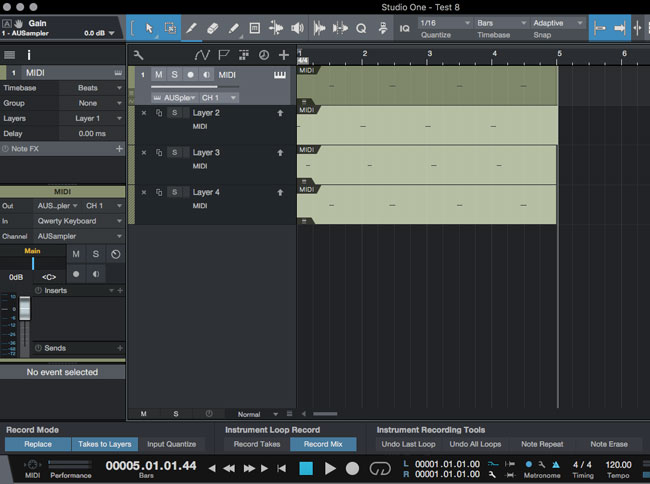
As can be seen looking at the two screenshots above, each have different Instrument Loop Record options set, but both sets of recordings have the same result: each MIDI take is correctly recorded as a discrete take, with no accumulation of MIDI date from one take to the next.



 Ade Drums