Tag: Studio One

  • Studio One Record Mode Options

    Studio One Record Mode Options

    An explanation of the various Presonus Studio One’s Record Mode options, particularly relevant for those working with the Takes to Layers feature when recording Audio and MIDI simultaneously.

    If you have seen my Studio One – Takes to Layers – MIDI article, you will know that I had been struggling a little to understand how Studio One handles MIDI when recording Audio and MIDI via USB from my Roland TD-25 drum module. Thanks to some extensive testing with real examples, I was able to work out was going on and understand, at last, exactly how those Record Mode options affect the MIDI and Audio results obtained. This article is me sharing with you the results of those tests, which should help those who obtain unexpected results and are not quite sure how to get the results they want.

    The Context

    Here’s my scenario: I want to record Audio and MIDI simultaneously from my Roland TD-25 module, and use Studio One’s Takes to Layers feature to be able to easily work with multiple takes of, for example, playing along to a song.

    The Problem

    Without the correct Record Mode options selected, the new MIDI event created with each recording take contained all the MIDI data from earlier takes. Not what I wanted at all, and a complete mess!

    How I did the tests

    In Studio One’s Arrange window, I set up one Audio track (stereo) and one Instrument track. As I was thousands of miles (yes, really) from my TD-25, with only my Macbook to hand, I used the Macbook’s built-in microphone to record my voice, and Studio One’s built-in QWERTY MIDI keyboard to simultaneously generate some MIDI notes while recording my voice.

    Studio One’s built-in QWERTY MIDI input feature is really handy for those times when you need to create some MIDI but don’t have a MIDI keyboard or other input device to hand to plug into your computer. Check out my Studio One QWERTY MIDI Keyboard article to find out how to set it up and use it.

    I then set up Takes to Layers in the Record Panel, activated the metronome with 1 measure of Pre Count, 4/4 time signature and 120 bpm, and recorded 3 takes, each 4 measures long:

    • Take 1 = Audio and MIDI source played only on beat 1 of each measure
    • Take 2 = Audio and MIDI source played only on beat 2 of each measure
    • Take 3 = Audio and MIDI source played only on beat 3 of each measure

    I created various versions of the above, each with a different combination of Record Mode options selected, and grabbed a full screenshot of the Studio One window showing the resulting Audio and MIDI events, and the Record Mode options selected for that particular test.

    The Results

    (I have only posted relevant tests, hence the Test numbering might seem a bit strange. Don’t worry about this, I only mention the Test numbers to make it clearer which screenshot is which.)

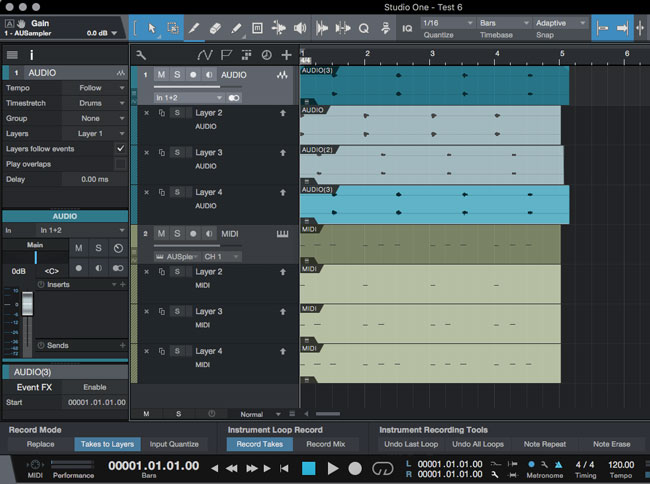
    Test 6 – Record Mode options:

    • Replace – Deactivated
    • Takes to Layers – Activated

    Studio One - Takes to Layers - Record Mode option Example - Test-6

    As can be seen above, the Audio takes look exactly as expected, ie first take (Layer 2) has recorded my voice on beat 1 of each measure, the second take (Layer 3) has my voice on beat 2 of each measure, and the third take has my voice on beat 3 of each measure, the MIDI takes are not the same. Instead, the first take (Layer 2) is as expected, ie one note on beat 1 of each measure, but the second and third takes (Layer 3 and 4) have simply added the new notes to what is already there from the previous takes. Not at all what I want.

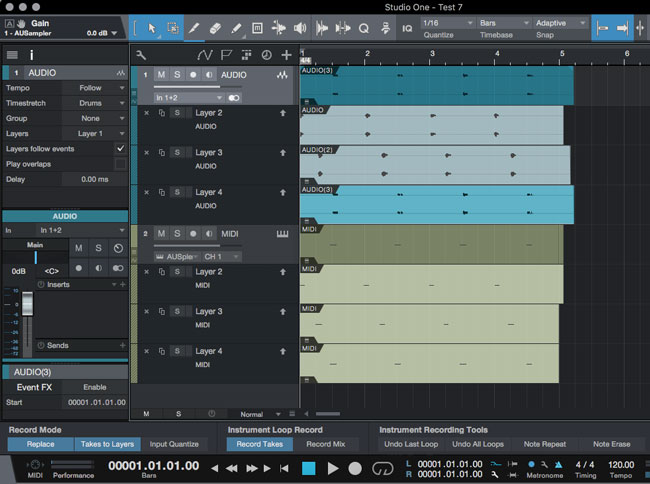
    Test 7 – Record Mode options:

    • Replace – Activated
    • Takes to Layers – Activated

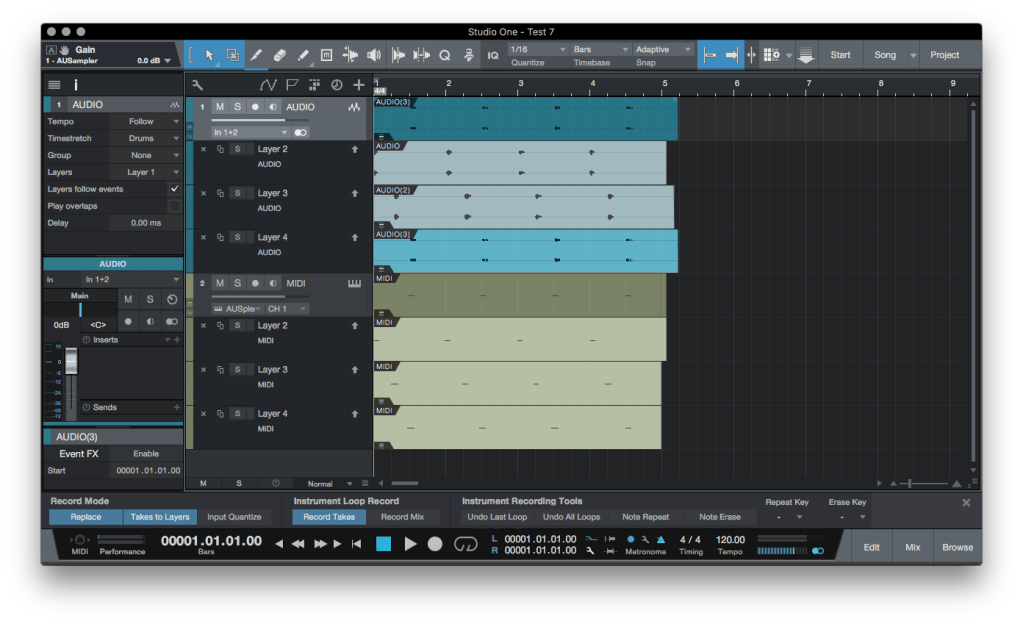
    Studio One - Takes to Layers - Example - Test-7

    Hooray! Working as expected. The MIDI takes now exactly mimic the Audio takes, with each take only containing the notes actually played during that take.

    The most important point to understand is that the Record Mode options affect BOTH Audio and MIDI, therefore we must activate Record Mode option “Replace” to stop the new MIDI take accumulating all the MIDI data recorded in earlier takes.

    What about Instrument Loop Record?

    The Instrument Loop Record options ONLY affect takes recorded while looping through a section of the song, ie when setting Loop L and R points and activating the Loop. In my context of recording a play along to a complete song, I’m not using Loop Record, therefore these settings have no effect. Here are a couple of screenshots to demonstrate this.

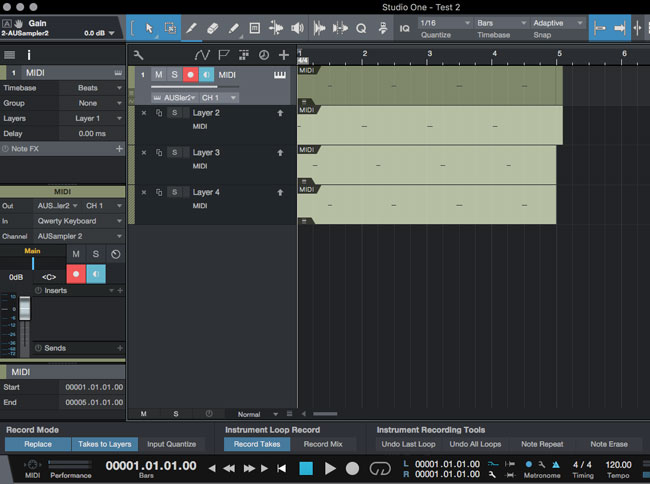
    Test 2: Instrument Loop Record – Record Takes activated
    Studio One - Takes to Layers - Example - Test-2

    Test 8: Instrument Loop Record – Record Mix activated
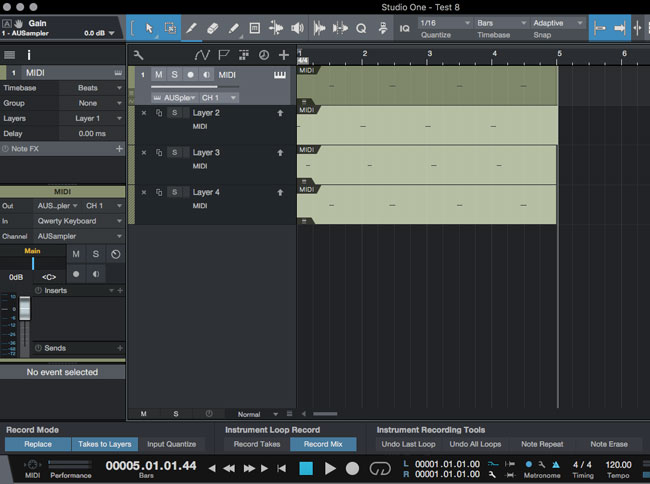
    Studio One - Takes to Layers - Example - Test-8

    As can be seen looking at the two screenshots above, each have different Instrument Loop Record options set, but both sets of recordings have the same result: each MIDI take is correctly recorded as a discrete take, with no accumulation of MIDI date from one take to the next.

  • Studio One – Takes to Layers – MIDI

    Studio One – Takes to Layers – MIDI

    This article is about using the “Record Takes to Layers” feature in Presonus Studio One (version 3.5.4) when recording Audio and MIDI via USB from the Roland TD-25 module, and will also be relevant for those using other Roland V-Drums modules which have direct out USB Audio and MIDI recording capabilities (eg the TD-30).

    The ability to record Audio and MIDI via USB direct from the Roland TD-25 module to your DAW is an excellent feature, very useful for having options later to, say, playback the recorded MIDI through EZDrummer, Addictive Drums, or SSD, etc.

    However, like me, you may have had some unexpected results when recording Audio and MIDI simultaneously when using Studio One’s Takes to Layers functionality, which this article will help you address.

    The problem with Studio One’s Takes to Layers is that it treats Audio and MIDI in slightly different ways, which can be both confusing and frustrating until you understand what’s going on and how to work around its limitations. Additionally, Studio One’s various Record options are not very intuitive in the first place, which doesn’t help.

    Understanding how Studio One handles MIDI events

    The big difference between Studio One and other DAWs out there is that MIDI events in Studio One are not saved as separate .mid files, but are saved within the Studio One Song file itself. Therefore, having recorded some MIDI you won’t find any corresponding MIDI files in the browser Pool.

    The second issue – which I would say is an oversight by Presonus – is that MIDI events created via Record Takes to Layers do not get unique identifying event names, unlike Audio Takes which do. (I discuss how to deal with this in my Working with Studio One MIDI Events article.)

    Finally, Presonus has made some assumptions about how and why users record MIDI, which are not very helpful in the context of recording multiple MIDI takes from the TD-25 (or similar sources). I would say that the Instrument recording options (“Instrument” being the source generating the MIDI data, in our case the TD-25) have been designed primarily for those who want to build up complex MIDI parts within a single MIDI event, for example for those building up a drum part, recording first the kick, then the snare, then the hi-hats, etc. Clearly, this isn’t generally the way a user would want to record MIDI from a TD-25.

    Let’s cut to the chase

    The key to getting Record Takes to Layers to work as expected when recording Audio and MIDI simultaneously is to ensure that you have the correct Record Panel options selected. Specifically, it is the Record Panel’s Record Mode options which matter, as these affect both Audio and MIDI recording, and NOT the Instrument Loop Record options, which are only relevant when recording MIDI Takes within a continuously repeating Loop.

    What is this “Record Takes to Layers” you speak of?  Studio One has the capability of recording multiple takes of the same source on a single Track in the DAW, automatically recording each each Take to a new Layer for that Track. Although designed primarily for allowing easier comping of multiple takes into a single take, I find it quite useful for file management purposes and for decluttering the Studio One Arrange and Mix screens.

    To access the Record options mentioned earlier, we need to open the Record Panel (which is probably closed by default).

    Studio One Record Panel

    To open the Record Panel, click on the little spanner icon to the right of the Loop position markers (spanner icon circled in red in below screenshot):

    Studio One - How to open Record Panel

    Once the Record Panel is open, you should see something like this:

    Studio One - Record Panel

    The ONLY options of interest, in the context of simultaneously recording Audio and MIDI from the TD-25, are the Record Mode “Replace” and “Takes to Layers” buttons. You can ignore all the rest, although I always leave “Input Quantize” off, as I want to record exactly what I played, not a quantized version.

    Replace – This means that each take will overwrite the previous take. In the case of Audio, this isn’t important as a separate audio file is created and saved for each take (and will be available in the Pool for future use). All that will happen is that only the latest take will be visible in the Arrange window. However, for MIDI recording this option IS crucial:

    • Replace OFF – The MIDI data generated during each take will be added to the previously recorded data and stored in the same MIDI event. This is bad news if you’re recording multiple takes and you want to save each one individually.
    • Replace ON – Only the MIDI data generated from the latest take will be stored in the MIDI event. This is exactly what we want.

    Takes to Layers – As mentioned earlier, each take will be stored in a separate Layer associated with the DAW track in question. This is what we want, so this option should be on, ie activated.

    Instrument Loop Record has two options “Record Takes” and “Record Mix”, which can be toggled between. For our purposes, it makes NO difference which of the two is selected – it really doesn’t matter. Instrument Recording Tools options can also be ignored as they have no impact on what we are trying to do. I suggest leaving these deactivated.

    Which Record Panel options to use?

    Simple. To simultaneously record Audio and MIDI from the TD-25 to separate Layers of Audio and MIDI, make sure your Record Panel options are set up like this:

    Studio One - Record Panel - Best options for TD-25

    The key options are Replace and Takes to Layers, both of which must be activated. None of the Instrument Loop Record or Instrument Recording Tools options matter and can be safely ignored.

    IMPORTANT: I was a little unfair to Presonus earlier in this article as, frankly, part of the confusion I had suffered was due to me not understanding that the Record Mode Replace and Takes To Layers options apply to BOTH Audio and MIDI. I had wrongly assumed that they only applied to Audio  – which is not the case. I had also assumed that the Instrument Loop Record options applied to all MIDI recording, whereas in fact they ONLY apply to MIDI recording when in Loop mode. When not using a Loop, these options do not apply and can be ignored.

    Conclusion

    The Takes to Layers feature is really useful when recording Audio and MIDI simultaneously from the TD-25 into Studio One. However, if the correct Record Mode options are not selected, unexpected results can occur, which can be confusing and frustrating. Hopefully this article will avoid you having to suffer the same frustrations that I suffered until I figured this all out!

    To learn more about Studio One’s Record Mode options, check out my Studio One Record Mode Options Examples article, packed with useful screenshots to illustrate what each option does.